Overview
The Lobby is a UI Element in Fortnite, where players gather before they enter a match. Players can access Discover in the Lobby's Play or Search tab to select a mode to play. The Lobby also allows players to access their Cosmetic Items, view available offerings in the Item Shop, manage their Fortnite Crew subscription and their Passes, and purchase V-Bucks. The Lobby also allows the player to quickly see and manage who is in their party in the Play tab.
The player will be taken directly to the Lobby once they launch Fortnite, with their most recent mode being displayed for quick access.
Text Chat is accessible from any tab in the Lobby, allowing players to communicate with their teammates and friends at all times.
Lobby Tabs
Lobby Tabs[]
Search[]
 Main Article: Discover
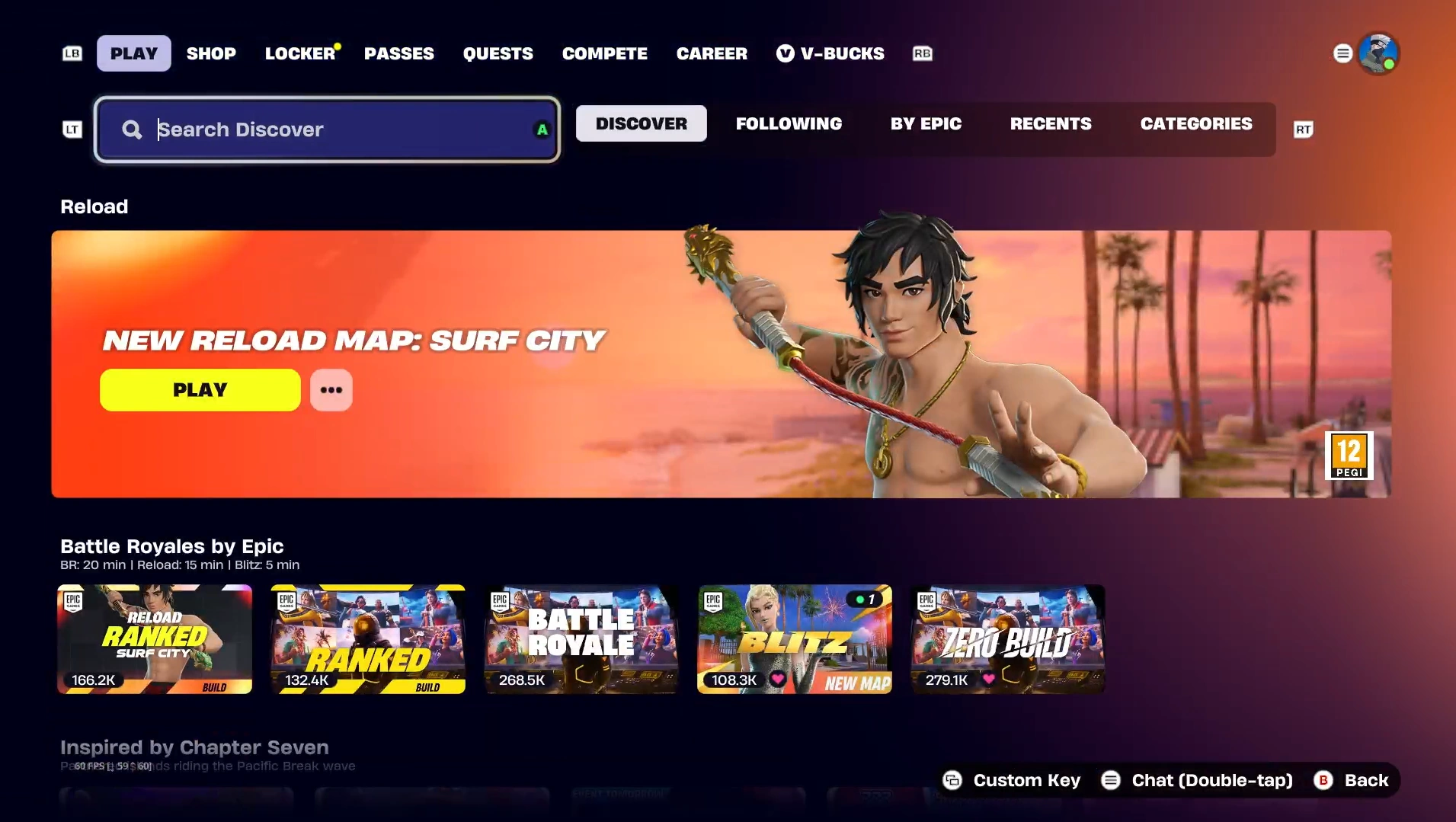
 Search allows the player to search for Islands and Creators by name or Island Code using the search bar at the top of the tab, allowing players to quickly find an experience that they are looking for. Players can also browse for specific categories of gamemodes using the provided Categories and Collections. The Search tab also contains recommended islands in a "For You" section, providing the player with play recommendations based on the player's play history.
Play[]
_-_User_Interface_-_Fortnite.png "Homebar (v39.00) - User Interface - Fortnite.png (2.55 MB)")
_-_User_Interface_-_Fortnite.png "Discover (v39.00) - User Interface - Fortnite.png (1.52 MB)")

The Play tab allows playes to launch into their selected gamemode by pressing the "Play" button. The tab also allows players to access Discover to browse for more gamemodes to play, as well as access the Homebar, which displays recently-accessed and recommended experiences, alongside a button to access the Library, which allows players to access their favourite islands and creators.
Each player in the party is displayed as their current selected Outfit. Players can also perform Emotes, use Emojis, and play Jam Loops in the Play tab. The player's current Season Level and Season Rank (if a Ranked Playlist is selected), is displayed on the bottom right.
The Play tab also displays a News carousel at the top left, displaying news such as recent game updates, Item Shop highlights, and featured experiences. The player can click on the News widget to expand it for more details and to cycle between the news.
Shop[]
 Main Article: Item Shop
 Shop, formely named Item Shop, is a tab where the player can view a wide array of different cosmetics that can be purchased with V-Bucks or real-world currency. The Shop resets daily, with some cosmetics rotating in and others leaving the shop.
The Shop will adjust the positioning of certain sections based on your selected gamemode. For example, if Rocket Racing is selected, the "Start Your Engines" section will appear at the top of the Shop. Players can also use the Shop's filters to make the shop temporarily only display certain cosmetic types, such as Emotes, allowing them to find cosmetics more easily.
Locker[]

 Main Article: Locker
 The Locker allows players to manage and equip their owned Cosmetic Items. Players can also manage and equip their saved Loadouts and Presets.
Every Locker section is accessible and can be equipped in every mode, but not all cosmetics can be used in all modes. For example, Cars cannot be used in Fortnite Festival, but they can still be equipped in the Locker when Fortnite Festival is selected. The modes that a cosmetic is usable in is displayed underneath its description.
Passes[]

The Passes tab allows players to view the current Fortnite Crew benefits, as well as the available passes. Upon opening the tab, players will be greeted with a display of the 4 available passes (the Battle Pass, Music Pass, LEGO Pass, and OG Pass), along with their respective progress for each pass. Above the passes is a section for the Fortnite Crew, with a "View Offer" button that allows players to view the current Crew pack and subscribe to the Crew. If the player cancels their Crew subscription, but it has not yet expired, an alert with their subscription's expiry date will be also displayed in this section.
Players can click on each pass, or alternatively use the side navigation to scroll between passes, to view and claim each pass' rewards and to purchase each pass if they have not yet done so. All passes are unlocked automatically while a player is subscribed to the Fortnite Crew.
Quests[]
 Main Article: Quests
 The Quests tab allows players to see their currently-available and completed quests. Quests are sorted by mode, but players can view all available quests, even if that mode has not been selected, by using the side navigation. The Quest section will be greyed out if it cannot be completed in your currently-selected mode.
Players can also track up to 25 quests, with up to 3 being pinned to their ingame HUD at a time. These can be viewed and managed in the "Tracked Quests" section.
V-Bucks[]
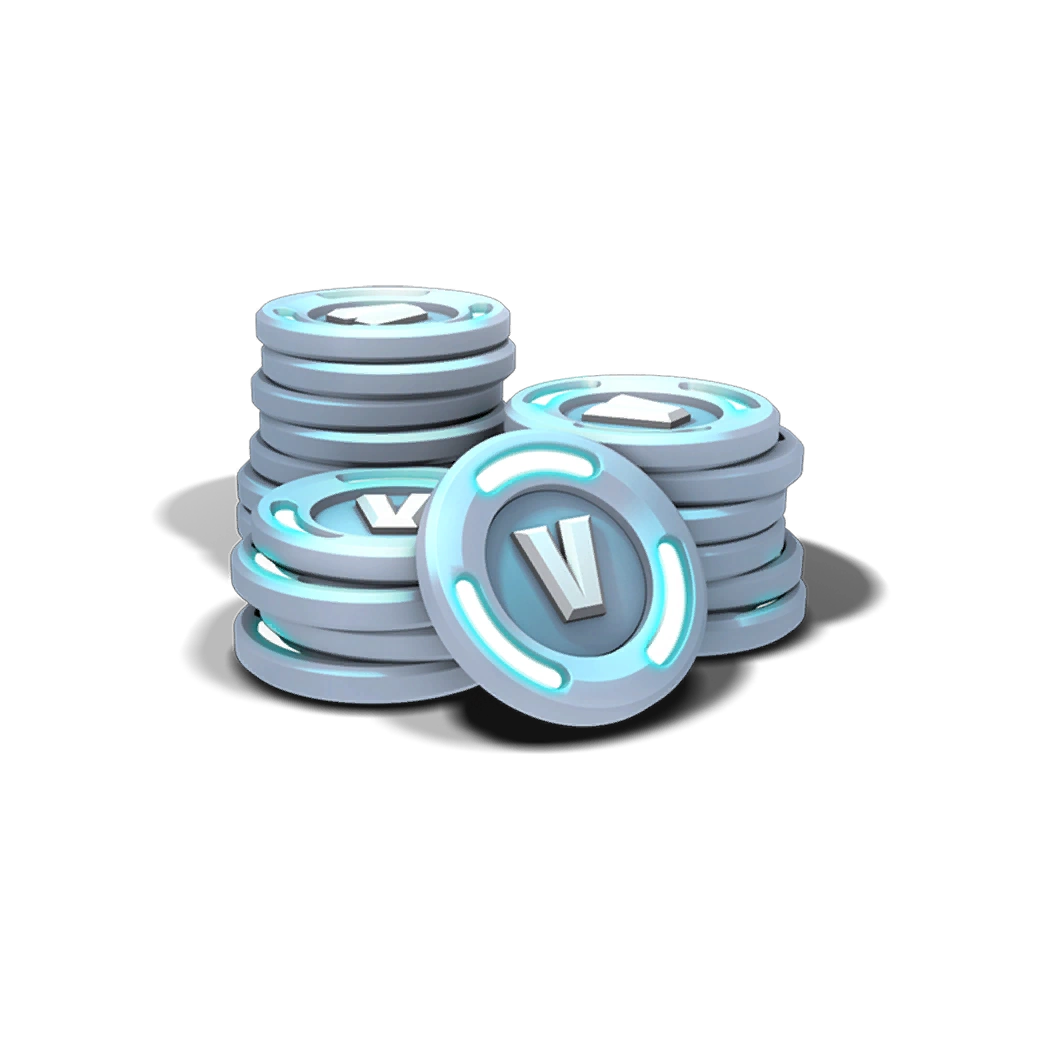
Main Article: V-Bucks The V-Bucks tab allows players to purchase V-Bucks. V-Bucks can be used in the Item Shop to purchase Cosmetic Items. Below is a list of available offerings in the V-Bucks tab:


Compete[]
 Main Article: Compete
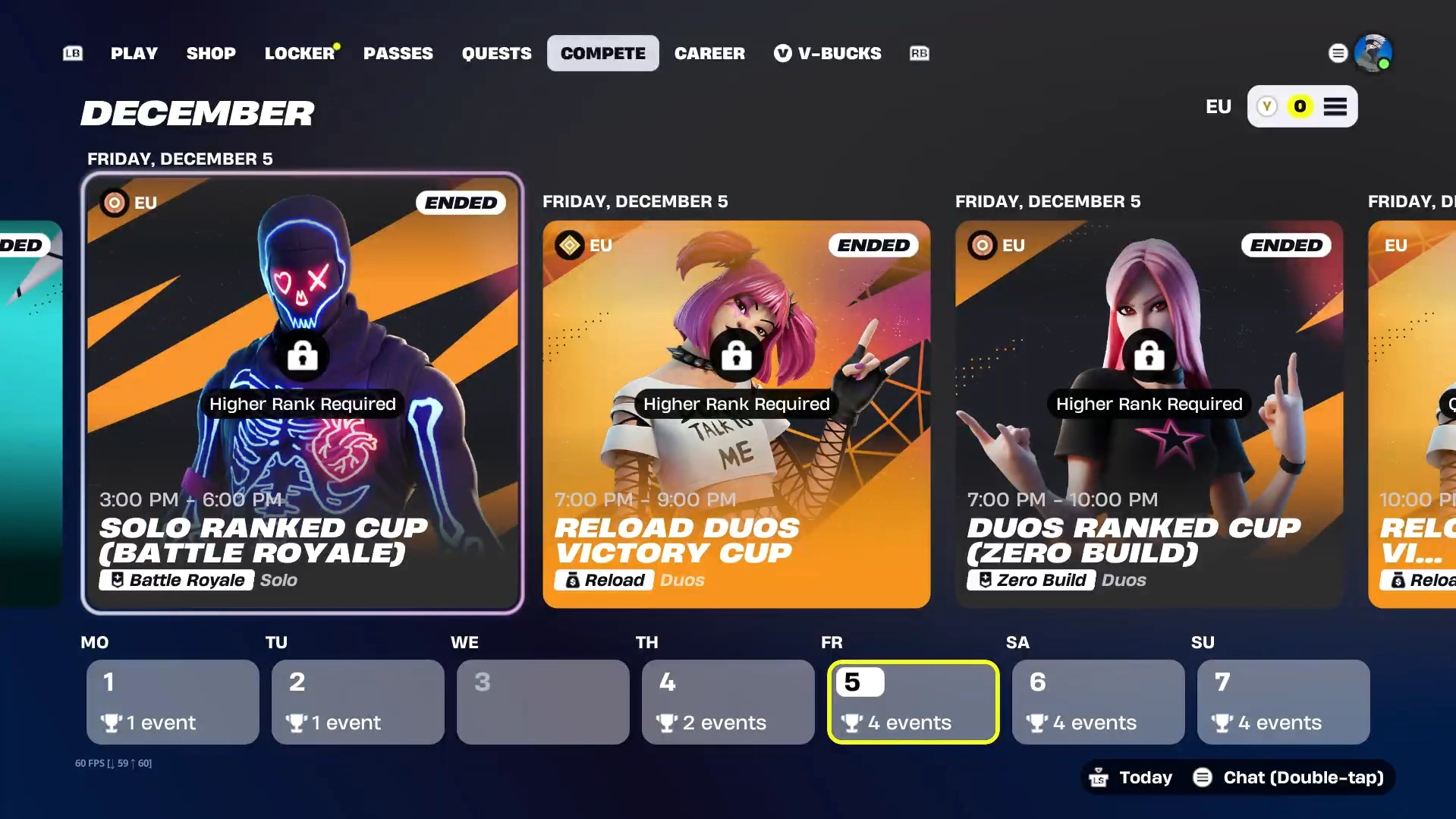
 The Compete tab allows players to see all current, recent, and future competitive events. They can select individual events to view their details, scoring, prizes, and leaderboards, and bookmark future events to be reminded when they take place. Players can filter events by mode, eligibility, whether the event is bookmarked, type (cash cup, FNCS, etc), and whether the event is ongoing or finished.
The tab also features a calendar view, allowing players to quickly jump to a certain date or view an overview of what events are taking place that month.
Note: This tab can only be seen when related playlists are selected.
Career[]


The Career tab allows players to view their stats, saved replays, and account level (the sum of all earned XP levels across all Seasons up to the current day). The player can filter these stats by mode and season, as well as whether to display statistics for Ranked or Casual modes.
Players could also view all of their earned Legacy Achievements in this tab before the feature was removed in Update v26.30.
Note: This tab can only be seen when related playlists are selected.
Miscellaneous[]
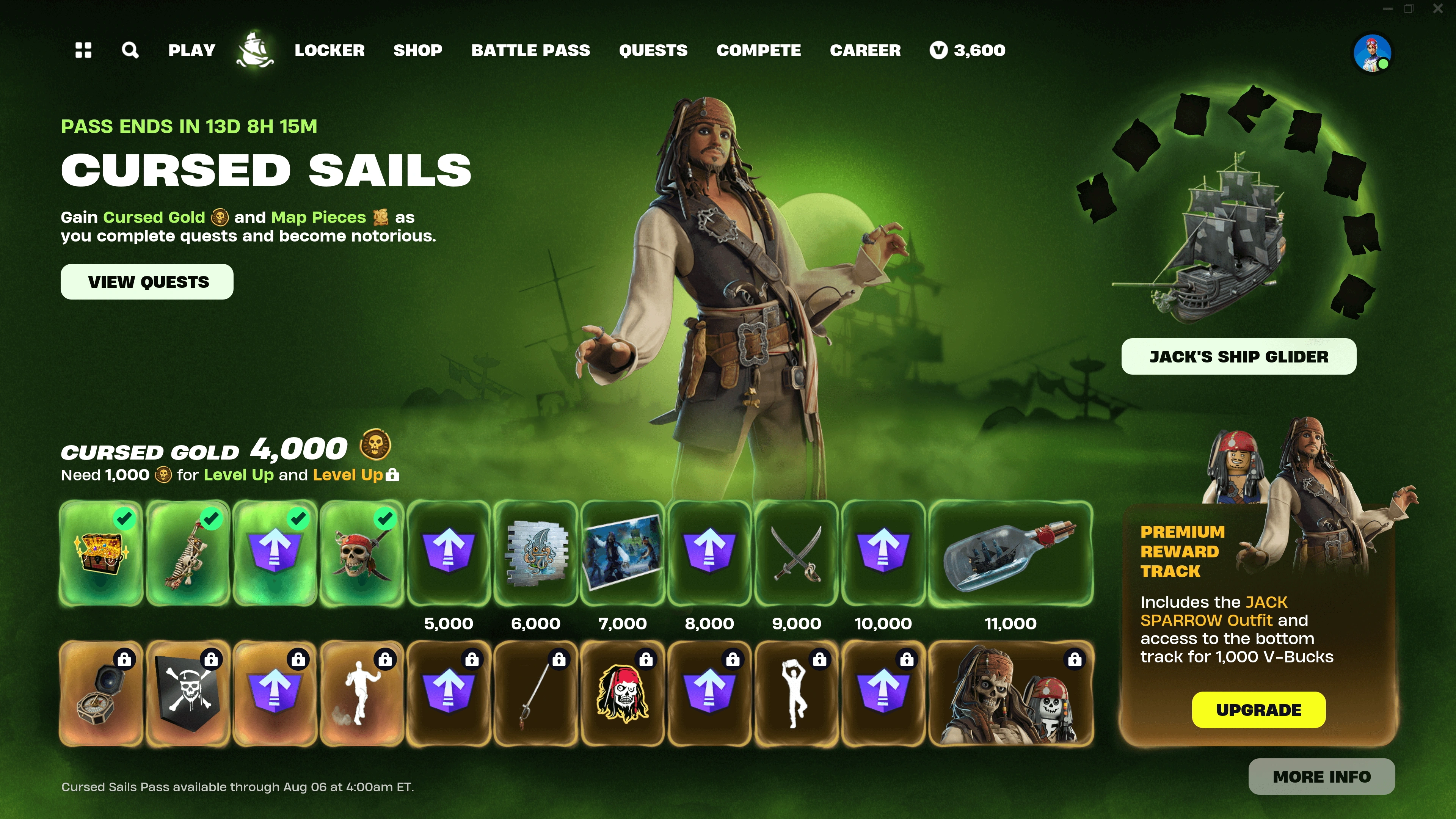

Occasionally, limited-time tabs can be added in the Lobby during an event. For example, during Winterfest, a Cabin tab (represented by a snowflake) is often added either besides the Play tab or next to the V-Bucks tab, allowing players to access the Winterfest Cabin. Prior to the introduction of the Passes tab in Chapter 6, this would also happen with the introduction of an Event Pass. These special tabs were available regardless of what mode was selected, and sometimes played music that would override the player's Lobby Music.
Prior to Chapter 6, the Music and Lego passes also had their own tabs in the Lobby. These would only appear when their respective modes were selected, and both would appear next to the Play tab.
History
History[]

|
This section is incomplete.  |
| Details about UI/UX changes and the introduction of new features may be missing or inaccurate. If you spot any errors or missing additions, please edit this template to expand or fix it! |
Pre-Season[]
- Update v1.6: Added the Lobby.
Season 6[]
- Update v6.10: Added the "Events" tab, later renamed to Compete.
Season 7[]
- Update v7.00: Updated the Locker with a new design.
Season 8[]
- Update v8.00: Updated the Challenges tab with a new design.
Season 9[]
- Update v9.20: Updated the background of tabs to be dark blue, the text to be light blue, and the selected tab color to be white.
Season 10[]
- Update v10.00: Updated the Battle Pass tab with a new design.
- Removed the spacing in between the tab buttons, making it one dark blue line with all the tab names inside.
Chapter 2: Season 1[]
- Update v11.00: Updated the design and layout of the Play tab. The mode details pane now has a transparent blue background. The mode's name is no longer selectable, and has been replaced by a blue "Change" button underneath the name. The "Play!" button has a new design and is now slightly skewed, meaning it is no longer a perfectly-uniform rectangle. Relevant Challenges and the Daily Punchcard is now displayed underneath the player's level; this pane also now has a transparent blue background. The warning message (mainly used for downtime announcements) now has a transparent background.
- Updated the design and layout of the Battle Pass tab.
- Updated the design and layout of the Career tab.
- Re-added the spacing between tab buttons. The tabs now all have white names and no background. The dimensions of the background of each tab have been slightly skewed.
- Update v11.31: Updated the design of the News tab. A News widget is now displayed at the top right of the screen, which slowly cycles through available news.
- Added the Cabin tab for Winterfest, represented by a snowflake. This marks the first time that a limited-time event tab was added, and also the introduction of 3D lobby tabs.
Chapter 2: Season 2[]
- Update v12.00: Updated the Battle Pass tab to be a 3D lobby tab.
- Removed the Challenges tab, as the Battle Pass tab now features a Challenges Table instead.
Chapter 2: Season 5[]
- Update v15.00: Reverted the Battle Pass tab back to a 2D lobby tab, but with a new design.
- Added the ability for players to view the map, collections, and their quests to the Play tab.
- Added a counter for the amount of Bars the player has to the Play tab.
Chapter 2: Season 7[]
- Update v17.00: Updated the design of the Battle Pass tab and added support for Battle Stars. The Battle Pass tab now has a vertical layout.
- Added a counter for the amount of Battle Stars and Alien Artifacts the player has to the Play tab.
- Update v17.50: Replaced the Mode Select screen with Discover. Updated the design of mode details pane; the Mode's icon is now displayed behind the mode's name and the buttons are now uniform rectangles again. The gamemode is now changed by clicking on the playlist's icon, and the change button has been removed. The team fill options have now been moved to a separate button outside of discover.
Chapter 2: Season 8[]
- Update v18.00: Updated the design of the Quests menu.
- Added a counter for the amount of Rainbow Ink the player has to the Play tab. Removed the counter for Alien Artifacts.
Chapter 3: Season 1[]
- Update v19.00: Updated the design of the Quests menu.
- Removed the counter for Rainbow Ink.
Chapter 3: Season 2[]
- Update v20.00: Added a counter for the amount of Omni Chips the player has to the Play tab.
Chapter 3: Season 3[]
- Update v21.00: Removed the counter for Omni Chips.
- Update v21.30: All of the Battle Royale and Zero Build playlists have been merged into one playlist respectively. The fill button has now been replaced with a sub-mode selector with the ability to set fill at the top.
- Added back the "Change" button to the mode details pane in the Play tab, but now it is inside of the playlist's icon. The mode is still changed by clicking on the icon, so the button's only function is to remind the player that they can change the gamemode.
Chapter 4: Season 1[]
- Update v23.00: Updated various elements of the Lobby to use the new button design and enhanced UI theme.
- Overhauled the design of the Battle Pass tab, reverting it back to a horizontal layout.
Chapter 4: Season 4[]
- Update v26.30: Revamped the design of the Lobby.
- Added the Search and Library tabs to the left of Play.
- The tabs are now aligned to the left of the screen, instead of the center. They also now use rounded corners.
- Updated the design and layout of the Play tab. Removed the Battle Star and Bars counts. Moved the mode details and "Ready Up" pane from the right of the screen to the left. Moved the player's level from the top left to the bottom right of the screen; the level count was turned into a button that would take you to the Battle Pass tab when clicked. A Survivor Medal button and display was added underneath the level count. Discover was moved to a row underneath the player, accessible by scrolling down instead of pressing a button. Updated the News section with rounded corners and a new design.
- Each mode, including Creator-Made Islands, can now apply its own custom lobby background that will be displayed when the mode is selected.
- The Career tab was updated with a new design.
Chapter 4: Season OG[]
- Update v27.00: The prompt that allows you to quickly invite suggested players to your party now has an updated design with rounded corners and a black background, instead of a blue one.
- Update v27.10: The font has begun transitioning from Burbank to Heading Now, with the Play tab being affected first.
Chapter 5: Season 1[]
- Update v28.00: The Lobby and Item Shop tabs were updated with a new design.
- December 9th 2023: Added a Music Pass tab that appears when Fortnite Festival is selected.
Chapter 5: Season 2[]
- Update v29.00: Updated the tab buttons to be slightly tinted by what is underneath it.
- Update v29.40: Added a Lego Pass tab that appears when Lego Fortnite is selected.
Chapter 5: Season 4[]
- Update v31.00: Increased the tinting of Lobby tabs.
Chapter 2 Remix[]
- Update v32.00: Updated the design of Discover and the Locker.
- Removed the Survivor Medal button due to the feature being removed.
Chapter 6: Season 1[]
- Update v33.00: Replaced the Battle Pass tab with the "Passes" tab, which contains every available pass. Due to this, the individual Lego Pass and Music Pass tabs have been removed. Rewards from passes will now automatically claim, unless the Auto-Claim option is manually disabled by the player.
- Updated the design of the progress bar of the Level button in the Play tab, changing its color from yellow to a colorful gradient.
- The font for the level bar that pops out when gaining XP has been changed. A new icon for it was introduced too.
- Update v33.30: Updated the design of the Quests tab.
Chapter 6: Season 2[]
- Update v34.00: Updated the design of the Compete tab.
Galactic Battle[]
- Update v35.20: Updated the design and functionality of the mode details pane in the Play tab. A "match found" message now appears in the location of the "ready up" button and plays a sound (even if the pane is not visible) when a match has been found. The text inside the mode options button is now aligned to the left, instead of the center, and the button now has an icon. In addition, the sound when pressing the "ready up" button has been removed. The icon of the current map rotation for Reload now appears behind the mode's name, instead of above it. The roundness of the UI has also been increased.
Chapter 6: Season 4[]
- Update v37.00: The sound when pressing the "ready up" button has been readded.
Lobby Background Timeline
Lobby Background Timeline[]
Each game mode has its own lobby background, and it may be updated depending on the current or upcoming update or change(s) for said mode. On special occasions, the Lobby has undergone changes in its background, typically during collaborations or significant events.

March 24th 2015
April 14th 2015

September 26th 2017
October 25th 2017

October 26th 2017
November 8th 2017
November 9th 2017
December 12th 2017

December 13th 2017
January 2nd 2018
January 3rd 2018
April 30th 2018

May 1st 2018
July 11th 2018

July 12th 2018
August 23rd 2018
_-_Lobby_Background_-_Fortnite.png "Season 5 (No Rift) - Lobby Background - Fortnite.png (2.13 MB)")
August 24th 2018
September 26th 2018

September 27th 2018
October 23rd 2018

October 24th 2018
November 3rd 2018

November 4th 2018
December 5th 2018

December 6th 2018
February 27th 2019

February 28th 2019
May 8th 2019

May 9th 2019
???
_-_Lobby_Background_-_Fortnite.png "Season 9 (New) - Lobby Background - Fortnite.png (1.03 MB)")
???
June 24th 2019

June 25th 2019
July 15th 2019
July 16th 2019
July 25th 2019

July 26th 2019
July 28th 2019
July 29th 2019
July 31st 2019

August 1st 2019
September 20th 2019

September 21st 2019
September 25th 2019
September 26th 2019
October 14th 2019

October 15th 2019
October 28th 2019

October 29th 2019
November 5th 2019
November 6th 2019
December 12th 2019

December 13th 2019
December 16th 2019

December 17th 2019
January 7th 2020
January 8th 2020
February 4th 2020

February 5th 2020
February 17th 2020
February 18th 2020
February 19th 2020

February 20th 2020
June 16th 2020

June 17th 2020
August 26th 2020

August 27th 2020
October 20th 2020

October 21st 2020
November 3rd 2020
November 4th 2020
December 1st 2020

December 2nd 2020
December 17th 2020

December 18th 2020
January 5th 2021
January 6th 2021
March 15th 2021

March 16th 2021
June 7th 2021

June 8th 2021
June 21st 2021

June 22nd 2021
July 5th 2021
July 6th 2021
July 26th 2021

July 27th 2021
August 2nd 2021

August 3rd 2021
August 16th 2021

August 17th 2021
September 6th 2021

September 7th 2021
September 12th 2021

September 13th 2021
October 4th 2021

October 5th 2021
November 2nd 2021
November 3rd 2021
December 4th 2021

December 5th 2021
December 15th 2021

December 16th 2021
January 6th 2022

January 7th 2022
March 19th 2022

March 20th 2022
April 3rd 2022

April 4th 2022
May 18th 2022
_-_Lobby_Background_-_Fortnite.png "Mecha Team Leader (Stage 1) - Lobby Background - Fortnite.png (4.4 MB)")
May 19th 2022
May 23rd 2022
_-_Lobby_Background_-_Fortnite.png "Mecha Team Leader (Stage 2) - Lobby Background - Fortnite.png (2.42 MB)")
May 24th 2022
May 27th 2022
_-_Lobby_Background_-_Fortnite.png "Mecha Team Leader (Stage 3) - Lobby Background - Fortnite.png (2.97 MB)")
May 28th 2022
May 31st 2022
_-_Lobby_Background_-_Fortnite.png "Mecha Team Leader (Stage 4) - Lobby Background - Fortnite.png (3.54 MB)")
June 1st 2022
June 4th 2022

June 5th 2022
July 20th 2022

July 21st 2022
August 10th 2022

August 11th 2022
August 30th 2022
August 31st 2022
September 17th 2022

September 18th 2022
October 17th 2022

October 18th 2021
November 1st 2022
November 2nd 2022
November 13th 2022

November 14th 2022
December 3rd 2022

December 4th 2022
December 12th 2022

December 13th 2022
January 3rd 2023
January 4th 2023
February 13th 2023

February 14th 2023
February 28th 2023
March 1st 2023
March 9th 2023

March 10th 2023
May 1st 2023

May 2nd 2023
May 23rd 2023

May 24th 2023
June 8th 2023

June 9th 2023
July 5th 2023

July 6th 2023
July 18th 2023
July 19th 2023
August 7th 2023

August 8th 2023
August 24th 2023

August 25th 2023
October 9th 2023

October 10th 2023
November 2nd 2023

November 3rd 2023
November 20th 2023

November 21st 2023
November 30th 2023
_-_Lobby_Background_-_Fortnite.jpg "The Big Bang (2) - Lobby Background - Fortnite.jpg (1.2 MB)")
December 1st 2023
December 2nd 2023

December 3rd 2023
December 4th 2023
_-_Lobby_Background_-_Fortnite.jpg "Lavish Lair (2) - Lobby Background - Fortnite.jpg (986 KB)")
December 5th 2023
December 5th 2023
_-_Lobby_Background_-_Fortnite.jpg "Lavish Lair (3) - Lobby Background - Fortnite.jpg (979 KB)")
December 5th 2023
December 13th 2023

December 14th 2023
January 1st 2024
January 2nd 2024
February 8th 2024

February 9th 2024
Febuary 26th 2024
Febuary 27th 2024
March 8th 2024

March 8th 2024
April 11th 2024

April 12th 2024
May 2nd 2024

May 3rd 2024
May 14th 2024
May 14th 2024
May 24th 2024

May 24th 2024
July 22nd 2024

July 22nd 2024
August 8th 2024
_-_Lobby_Background_-_Fortnite.jpg "Chapter 5 Season 3 (Cybertruck) - Lobby Background - Fortnite.jpg (468 KB)")
August 8th 2024
August 16th 2024

August 16th 2024
October 12th 2024

October 12th 2024
November 1st 2024

November 2nd 2024
November 29th 2024
_-_Lobby_Background_-_Fortnite.jpg "Chapter 2 Remix (Device) - Lobby Background - Fortnite.jpg (1.12 MB)")
November 29th 2024
November 30th 2024

December 1st 2024
February 21st 2025

February 21st 2025
May 2nd 2025

May 2nd 2025
June 7th 2025

June 7th 2025
August 7th 2025

August 7th 2025
September 10th 2025
_-_Lobby_Background_-_Fortnite.jpg "Chapter 6 Season 4 (Megazord - Stage 1) - Lobby Background - Fortnite.jpg (1.05 MB)")
September 10th 2025
September 12th 2025
_-_Lobby_Background_-_Fortnite.jpg "Chapter 6 Season 4 (Megazord - Stage 2) - Lobby Background - Fortnite.jpg (1.06 MB)")
September 12th 2025
September 13th 2025
_-_Lobby_Background_-_Fortnite.jpg "Chapter 6 Season 4 (Megazord - Stage 3) - Lobby Background - Fortnite.jpg (1.08 MB)")
September 13th 2025
September 16th 2025
_-_Lobby_Background_-_Fortnite.jpg "Chapter 6 Season 4 (Megazord - Stage 4) - Lobby Background - Fortnite.jpg (1.09 MB)")
September 16th 2025
September 16th 2025
_-_Lobby_Background_-_Fortnite.jpg "Chapter 6 Season 4 (Megazord - Stage 5) - Lobby Background - Fortnite.jpg (1.1 MB)")
September 16th 2025
September 18th 2025
_-_Lobby_Background_-_Fortnite.png "Chapter 6 Season 4 (Megazord - Stage 6) - Lobby Background - Fortnite.png (4.33 MB)")
September 18th 2025
September 18th 2025
_-_Lobby_Background_-_Fortnite.jpg "Chapter 6 Season 4 (Dino Megazord) - Lobby Background - Fortnite.jpg (1.17 MB)")
September 18th 2025
October 9th 2025

October 9th 2025
November 1st 2025

November 1st 2025
November 20th 2025

November 20th 2025
November 25th 2025
_-_Lobby_Background_-_Fortnite.jpg "Zero Hour (2nd) - Lobby Background - Fortnite.jpg (444 KB)")
November 25th 2025
November 29th 2025

November 30th 2025
December 2nd 2025
_-_Lobby_Background_-_Fortnite.jpg "Chapter 7 Season 1 (2) - Lobby Background - Fortnite.jpg (924 KB)")
December 2nd 2025
December 3rd 2025
_-_Lobby_Background_-_Fortnite.jpg "Chapter 7 Season 1 (3) - Lobby Background - Fortnite.jpg (913 KB)")
December 3rd 2025
December 5th 2025
_-_Lobby_Background_-_Fortnite.jpg "Chapter 7 Season 1 (4) - Lobby Background - Fortnite.jpg (907 KB)")
December 5th 2025
December 18th 2025

December 18th 2025
January 9th 2026

January 9th 2026
January 30th 2026
January 30th 2026
February 27th 2026

February 27th 2026
March 3rd 2026
_-_Lobby_Background_-_Fortnite.jpg "Chapter 7 Season 1 (v39.51) - Lobby Background - Fortnite.jpg (185 KB)")
March 3rd 2026
March 7th 2026
_-_Lobby_Background_-_Fortnite.jpeg "Chapter 7 Season 1 (v39.51 - 2) - Lobby Background - Fortnite.jpeg (634 KB)")
March 7th 2026
March 8th 2026
March 8th 2026
March 12th 2026
_-_Lobby_Background_-_Fortnite.jpg "Chapter 7 Season 1 (v39.51 - 3) - Lobby Background - Fortnite.jpg (1.86 MB)")
March 12th 2026
March 14th 2026
_-_Lobby_Background_-_Fortnite.jpg "Chapter 7 Season 1 (v39.51 - 4) - Lobby Background - Fortnite.jpg (1.8 MB)")
March 14th 2026
March 19th 2026

March 19th 2026
April 16th 2026
_-_Lobby_Background_-_Fortnite.jpg "Chapter 7 Season 2 (v40.20) - Lobby Background - Fortnite.jpg (1.39 MB)")
April 16th 2026
April 30th 2026
_-_Lobby_Background_-_Fortnite.jpg "Chapter 7 Season 2 (v40.30) - Lobby Background - Fortnite.jpg (1.12 MB)")
April 30th 2026
May 14th 2026
_-_Lobby_Background_-_Fortnite.jpg "Chapter 7 Season 2 (v40.40) - Lobby Background - Fortnite.jpg (567 KB)")
May 14th 2026
May 30th 2026
_-_Lobby_Background_-_Fortnite.jpg "Chapter 7 Season 2 (v40.41) - Lobby Background - Fortnite.jpg (186 KB)")
May 30th 2026
June 5th 2026

June 6th 2026
_-_Lobby_Background_-_Fortnite.png "Season 8 (unused) - Lobby Background - Fortnite.png (2.1 MB)")
_-_Lobby_Background_-_Fortnite.png "Season X (Alt) - Lobby Background - Fortnite.png (371 KB)")
_-_Lobby_Background_-_Fortnite.jpg "Chapter 2 Season 2 (Device) - Lobby Background - Fortnite.jpg (332 KB)")


_-_Lobby_Background_-_Fortnite.jpg "Chapter 5 Season 3 (possibly unused background) - Lobby Background - Fortnite.jpg (107 KB)")


December 7th 2023
February 22nd 2024

February 22nd 2024
March 26th 2024

March 26th 2024

May 3rd 2024
July 23rd 2024
July 23rd 2024
September 16th 2024

September 17th 2024
December 9th 2024

December 10th 2024
December 11th 2025

December 11th 2025

December 12th 2024

June 18th 2025

December 8th 2023
April 22nd 2024
_-_Lobby_Background_-_Fortnite.jpg "Rocket Racing (Season 1) - Lobby Background - Fortnite.jpg (623 KB)")
April 23rd 2024
July 23rd 2024
_-_Lobby_Background_-_Fortnite.jpg "Rocket Racing (Season 2) - Lobby Background - Fortnite.jpg (842 KB)")
July 23rd 2024
October 1st 2024
October 1st 2024

December 9th 2023
February 22nd 2024
_-_Lobby_Background_-_Fortnite.jpg "Festival Main Stage (Season 2) - Lobby Background - Fortnite.jpg (935 KB)")
February 22nd 2024
April 22rd 2024
_-_Lobby_Background_-_Fortnite.jpg "Festival Main Stage (Season 3) - Lobby Background - Fortnite.jpg (916 KB)")
April 23rd 2024
May 3rd 2024

May 3rd 2024
May 14th 2024
May 14th 2024
June 13th 2024
_-_Lobby_Background_-_Fortnite.jpg "Festival Main Stage (Season 4) - Lobby Background - Fortnite.jpg (938 KB)")
June 13th 2024
August 16th 2024
_-_Lobby_Background_-_Fortnite.jpg "Festival Main Stage (Season 5) - Lobby Background - Fortnite.jpg (1.04 MB)")
August 16th 2024
November 2nd 2024
_-_Lobby_Background_-_Fortnite.jpg "Festival Main Stage (Season 6) - Lobby Background - Fortnite.jpg (872 KB)")
November 2nd 2024
January 13th 2025
_-_Lobby_Background_-_Fortnite.jpg "Festival Main Stage (Season 7) - Lobby Background - Fortnite.jpg (855 KB)")
January 14th 2025
April 7th 2025
_-_Lobby_Background_-_Fortnite.jpg "Festival Main Stage (Season 8) - Lobby Background - Fortnite.jpg (1.12 MB)")
April 8th 2025
June 18th 2025
_-_Lobby_Background_-_Fortnite.jpg "Festival Main Stage (Season 9) - Lobby Background - Fortnite.jpg (1.21 MB)")
June 18th 2025
August 26th 2025
_-_Lobby_Background_-_Fortnite.jpg "Festival Main Stage (Season 10) - Lobby Background - Fortnite.jpg (980 KB)")
August 26th 2025
November 11th 2025
_-_Lobby_Background_-_Fortnite.jpg "Festival Main Stage (Season 11) - Lobby Background - Fortnite.jpg (1.04 MB)")
November 11th 2025
November 30th 2025
_-_Lobby_Background_-_Fortnite.jpg "Festival Main Stage (Season 12) - Lobby Background - Fortnite.jpg (426 KB)")
December 1st 2025
February 5th 2025
_-_Lobby_Background_-_Fortnite.jpg "Festival Main Stage (Season 13) - Lobby Background - Fortnite.jpg (664 KB)")
February 5th 2025
April 16th 2026
_-_Lobby_Background_-_Fortnite.jpg "Festival Main Stage (Season 14) - Lobby Background - Fortnite.jpg (619 KB)")
April 16th 2026

December 9th 2023
May 3rd 2024

May 3rd 2024
May 14th 2024
May 14th 2024
June 13th 2024
_-_Lobby_Background_-_Fortnite.jpg "Festival Jam Stage (Season 4) - Lobby Background - Fortnite.jpg (805 KB)")
June 13th 2024
August 16th 2024
_-_Lobby_Background_-_Fortnite.jpg "Festival Jam Stage (Season 5) - Lobby Background - Fortnite.jpg (796 KB)")
August 16th 2024
November 2nd 2024
_-_Lobby_Background_-_Fortnite.jpg "Festival Jam Stage (Season 6) - Lobby Background - Fortnite.jpg (900 KB)")
November 2nd 2024
January 13th 2025
_-_Lobby_Background_-_Fortnite.jpg "Festival Jam Stage (Season 7) - Lobby Background - Fortnite.jpg (778 KB)")
January 15th 2025
April 7th 2025
_-_Lobby_Background_-_Fortnite.jpg "Festival Jam Stage (Season 8) - Lobby Background - Fortnite.jpg (1.01 MB)")
April 8th 2025
_-_Lobby_Background_-_Fortnite.jpg "Festival Battle Stage (Season 4) - Lobby Background - Fortnite.jpg (667 KB)")
June 13th 2024
August 16th 2024
_-_Lobby_Background_-_Fortnite.jpg "Festival Battle Stage (Season 5) - Lobby Background - Fortnite.jpg (1.1 MB)")
August 16th 2024
November 2nd 2024
_-_Lobby_Background_-_Fortnite.jpg "Festival Battle Stage (Season 6) - Lobby Background - Fortnite.jpg (935 KB)")
November 2nd 2024
January 14th 2025
_-_Lobby_Background_-_Fortnite.jpg "Festival Battle Stage (Season 7) - Lobby Background - Fortnite.jpg (1.03 MB)")
January 14th 2025
April 7th 2025
_-_Lobby_Background_-_Fortnite.jpg "Festival Battle Stage (Season 8) - Lobby Background - Fortnite.jpg (965 KB)")
April 8th 2025
April 16th 2026
_-_Lobby_Background_-_Fortnite.jpg "Tilted Towers (Reload) - Lobby Background - Fortnite.jpg (1.02 MB)")
June 22nd 2024
November 2nd 2024
_-_Lobby_Background_-_Fortnite.jpg "Paradise Palms (Reload) - Lobby Background - Fortnite.jpg (663 KB)")
November 2nd 2024
April 15th 2025
_-_Lobby_Background_-_Fortnite.png "Slurpy Swamp (Reload) - Lobby Background - Fortnite.png (6.24 MB)")
April 15th 2025
June 18th 2025
_-_Lobby_Background_-_Fortnite.jpg "Squid Games (Reload) - Lobby Background - Fortnite.jpg (1.32 MB)")
June 18th 2025
September 10th 2025
_-_Lobby_Background_-_Fortnite.jpg "Tilted Towers (Reload - No Text) - Lobby Background - Fortnite.jpg (952 KB)")
September 10th 2025
October 9th 2025

October 9th 2025
November 1st 2025
November 1st 2025
November 25th 2025
November 25th 2025
November 29th 2025
_-_Lobby_Background_-_Fortnite.jpg "Surf City (Reload) - Lobby Background - Fortnite.jpg (487 KB)")
December 4th 2025
March 19th 2026
February 13th 2026
February 15th 2026
March 19th 2026
April 20th 2026
March 19th 2026
April 20th 2026
March 19th 2026
April 20th 2026
_-_Lobby_Background_-_Fortnite.jpg "Elite Stronghold (Reload) - Lobby Background - Fortnite.jpg (3.06 MB)")
April 20th 2026
April 25th 2026
_-_Lobby_Background_-_Fortnite.jpg "Elite Stronghold (Reload - Dark Harvester 1) - Lobby Background - Fortnite.jpg (748 KB)")
April 25th 2026
April 25th 2026
_-_Lobby_Background_-_Fortnite.jpg "Elite Stronghold (Reload - Dark Harvester 2) - Lobby Background - Fortnite.jpg (1.16 MB)")
April 26th 2026
April 30th 2026
_-_Lobby_Background_-_Fortnite.jpg "Elite Stronghold (Reload - v40.30) - Lobby Background - Fortnite.jpg (635 KB)")
April 30th 2026
April 30th 2026
April 30th 2026
_-_Lobby_Background_-_Fortnite.png "Season 1 & 2 (Fortnite OG) - Lobby Background - Fortnite.png (841 KB)")
December 6th 2024
March 24th 2025
_-_Lobby_Background_-_Fortnite.png "Season 3 (Fortnite OG) - Lobby Background - Fortnite.png (5.7 MB)")
March 25th 2025
June 7th 2025
_-_Lobby_Background_-_Fortnite.png "Season 3 (Fortnite OG 50v50) - Lobby Background - Fortnite.png (4.87 MB)")
March 25th 2025
June 7th 2025
_-_Lobby_Background_-_Fortnite.jpg "Season 4 (Fortnite OG) - Lobby Background - Fortnite.jpg (1.06 MB)")
June 7th 2025
August 7th 2025
_-_Lobby_Background_-_Fortnite.jpg "Season 5 (Fortnite OG) - Lobby Background - Fortnite.jpg (1.26 MB)")
August 7th 2025
October 2nd 2025
_-_Lobby_Background_-_Fortnite.png "Season 6 (Fortnite OG) - Lobby Background - Fortnite.png (2.95 MB)")
October 2nd 2025
November 25th 2025
November 25th 2025
November 29th 2025
_-_Lobby_Background_-_Fortnite.jpg "Season 7 (Fortnite OG) - Lobby Background - Fortnite.jpg (906 KB)")
December 11th 2025
April 1st 2026
_-_Lobby_Background_-_Fortnite.jpg "Season 8 (Fortnite OG) - Lobby Background - Fortnite.jpg (798 KB)")
April 1st 2026

December 11th 2024
August 26th 2025

April 8th 2025
_-_Lobby_Background_-_Fortnite.jpg "Fortnite Ballistic (Hammerfall) - Lobby Background - Fortnite.jpg (1.06 MB)")
August 26th 2025
April 16th 2026

June 18th 2025
July 29th 2025
_-_Lobby_Background_-_Fortnite.jpg "Blitz Royale (MEGA City) - Lobby Background - Fortnite.jpg (2.14 MB)")
July 29th 2025
August 26th 2025
_-_Lobby_Background_-_Fortnite.jpg "Blitz Royale (Asteria) - Lobby Background - Fortnite.jpg (2.17 MB)")
August 26th 2025
September 12th 2025
_-_Lobby_Background_-_Fortnite.jpg "Blitz Royale (Stark Island - 1) - Lobby Background - Fortnite.jpg (2.63 MB)")
September 12th 2025
September 12th 2025
_-_Lobby_Background_-_Fortnite.png "Blitz Royale (Stark Island - 2) - Lobby Background - Fortnite.png (6.22 MB)")
September 12th 2025
September 12th 2025
_-_Lobby_Background_-_Fortnite.png "Blitz Royale (Stark Island - 3) - Lobby Background - Fortnite.png (5.41 MB)")
September 12th 2025
September 12th 2025
_-_Lobby_Background_-_Fortnite.png "Blitz Royale (Stark Island - 4) - Lobby Background - Fortnite.png (5.59 MB)")
September 12th 2025
September 12th 2025
_-_Lobby_Background_-_Fortnite.jpg "Blitz Royale (Stark Island) - Lobby Background - Fortnite.jpg (1.99 MB)")
September 12th 2025
September 25th 2025
September 25th 2025
October 9th 2025
_-_Lobby_Background_-_Fortnite.jpg "Blitz Royale (Brutal Bulwark) - Lobby Background - Fortnite.jpg (928 KB)")
October 9th 2025
November 21st 2025
_-_Lobby_Background_-_Fortnite.jpg "Blitz Royale (Stranger Things) - Lobby Background - Fortnite.jpg (990 KB)")
November 21st 2025
November 25th 2025
November 25th 2025
November 29th 2025
_-_Lobby_Background_-_Fortnite.jpg "Blitz Royale (Starfall Island) - Lobby Background - Fortnite.jpg (283 KB)")
December 4th 2025
March 19th 2026
January 9th 2026
March 19th 2026
March 19th 2026
April 1st 2026
April 1st 2026
April 30th 2026
April 30th 2026

December 6th 2018
???

September 20th 2025
January 19th 2026
???

April 9th 2026

??? - April 17th 2025
_-_Lobby_Background_-_Fortnite.png "Legends Landing (v34.30) - Lobby Background - Fortnite.png (2.23 MB)")
April 17th 2025 - May 29th 2026
_-_Lobby_Background_-_Fortnite.png "Legends Landing (v40.41) - Lobby Background - Fortnite.png (1.92 MB)")
May 29th 2026

May 1st 2026 - ???
_-_Lobby_Background_-_Fortnite.png "Galactic Siege (2) - Lobby Background - Fortnite.png (3.59 MB)")
??? - May 22nd 2026
_-_Lobby_Background_-_Fortnite.png "Galactic Siege (3) - Lobby Background - Fortnite.png (9.41 MB)")
May 22nd 2026

May 1st 2026

May 1st 2026
Trivia
Trivia[]
- During Chapter 2: Season 7, the Career tab was replaced with an Rift Tour tab, showcasing the dates of the Rift Tour event. The Career tab could still be accessed via a button in the Rift Tour tab. This marks the first, and only, time that a permanent tab was replaced by an event tab.
- When entering certain Live Events, a unique animation would sometimes play. When entering Collision, the player would jump through the pedestal underneath them. When entering Fracture, Chrome would spill down into the lobby, however this was bugged for most players and their characters did not float into the Chrome.
- During The End, if a player did not queue up for the event and remained in the Lobby, a mini-event occurred that sucked players, and the Lobby User Interface, into the black hole. This did not happen during any other server-shutdown events, as players were just immediately taken to the downtime screen.
Gallery
Gallery[]

|
This page is under construction. |
| Please refrain from editing the page if another user is actively doing so as to avoid edit conflicts. |
_-_User_Interface_-_Fortnite.jpg "Lobby (v3.00) - User Interface - Fortnite.jpg (131 KB)")
_-_User_Interface_-_Fortnite.jpg "Lobby (v6.00) - User Interface - Fortnite.jpg (411 KB)")
_-_User_Interface_-_Fortnite.jpg "Lobby (v9.20) - User Interface - Fortnite.jpg (128 KB)")
_-_User_Interface_-_Fortnite.png "Lobby (v10.00) - User Interface - Fortnite.png (1.42 MB)")
_-_User_Interface_-_Fortnite.jpg "Lobby (v11.00) - User Interface - Fortnite.jpg (119 KB)")
_-_User_Interface_-_Fortnite.jpg "Lobby (v12.00) - User Interface - Fortnite.jpg (1,015 KB)")
_-_User_Interface_-_Fortnite.jpg "Lobby (v15.00) - User Interface - Fortnite.jpg (226 KB)")
_-_User_Interface_-_Fortnite.jpg "Lobby (v18.00) - User Interface - Fortnite.jpg (108 KB)")
_-_User_Interface_-_Fortnite.jpg "Lobby (v22.00) - User Interface - Fortnite.jpg (148 KB)")
_-_User_Interface_-_Fortnite.jpg "Lobby (v23.00) - User Interface - Fortnite.jpg (233 KB)")
_-_User_Interface_-_Fortnite.jpg "Lobby (v25.00) - User Interface - Fortnite.jpg (1.76 MB)")
_-_User_Interface_-_Fortnite.jpg "Lobby (v26.30) - User Interface - Fortnite.jpg (185 KB)")
_-_User_Interface_-_Fortnite.jpeg "Lobby (v27.00) - User Interface - Fortnite.jpeg (302 KB)")
_-_User_Interface_-_Fortnite.jpg "Lobby (v28.00) - User Interface - Fortnite.jpg (123 KB)")
_-_User_Interface_-_Fortnite.jpeg "Lobby (v32.00) - User Interface - Fortnite.jpeg (213 KB)")
_-_User_Interface_-_Fortnite.png "Lobby (v36.00) - User Interface - Fortnite.png (2.3 MB)")
_-_User_Interface_-_Fortnite.jpg "Item Shop (v1.8) - User Interface - Fortnite.jpg (97 KB)")
_-_User_Interface_-_Fortnite.jpg "Item Shop (v10.20) - User Interface - Fortnite.jpg (175 KB)")
_-_User_Interface_-_Fortnite.jpg "Item Shop (v11.30) - User Interface - Fortnite.jpg (194 KB)")
_-_User_Interface_-_Fortnite.png "Item Shop (v14.60) - User Interface - Fortnite.png (551 KB)")
_-_User_Interface_-_Fortnite.jpg "Item Shop (v26.20) - User Interface - Fortnite.jpg (144 KB)")
_-_User_Interface_-_Fortnite.jpg "Item Shop (v27.00) - User Interface - Fortnite.jpg (180 KB)")
_-_User_Interface_-_Fortnite.jpeg "Item Shop (v28.00) - User Interface - Fortnite.jpeg (318 KB)")
_-_User_Interface_-_Fortnite.png "Item Shop (v31.00) - User Interface - Fortnite.png (2.14 MB)")
_-_User_Interface_-_Fortnite.png "Item Shop (v36.00) - User Interface - Fortnite.png (1.22 MB)")
_-_User_Interface_-_Fortnite.jpg "Locker (v3.00) - User Interface - Fortnite.jpg (52 KB)")
_-_User_Interface_-_Fortnite.png "Locker (v6.00) - User Interface - Fortnite.png (587 KB)")
_-_User_Interface_-_Fortnite.jpg "Locker (v7.00) - User Interface - Fortnite.jpg (127 KB)")
_-_User_Interface_-_Fortnite.jpg "Locker (v12.20) - User Interface - Fortnite.jpg (128 KB)")
_-_Mechanic_-_Fortnite.png "Locker (v15.00) - Mechanic - Fortnite.png (1.13 MB)")
_-_User_Interface_-_Fortnite.png "Locker (v24.40) - User Interface - Fortnite.png (776 KB)")
_-_Mechanic_-_Fortnite.png "Locker (v28.00) - Mechanic - Fortnite.png (681 KB)")
_-_Mechanic_-_Fortnite.png "Locker (v31.00) - Mechanic - Fortnite.png (1.65 MB)")
_-_Mechanic_-_Fortnite.png "Locker (v33.00) - Mechanic - Fortnite.png (1.24 MB)")
_-_User_Interface_-_Fortnite.png "Fortnite Crew (v36.00) - User Interface - Fortnite.png (1.78 MB)")
_-_User_Interface_-_Fortnite.jpg "Battle Pass (v2.00) - User Interface - Fortnite.jpg (131 KB)")
_-_User_Interface_-_Fortnite.png "Battle Pass (v9.00) - User Interface - Fortnite.png (810 KB)")
_-_User_Interface_-_Fortnite.jpg "Battle Pass (v10.00) - User Interface - Fortnite.jpg (125 KB)")
_-_User_Interface_-_Fortnite.jpg "Battle Pass (v11.00) - User Interface - Fortnite.jpg (125 KB)")
_-_User_Interface_-_Fortnite.jpg "Battle Pass (v12.00) - User Interface - Fortnite.jpg (138 KB)")
_-_User_Interface_-_Fortnite.jpg "Battle Pass (v13.00) - User Interface - Fortnite.jpg (120 KB)")
_-_User_Interface_-_Fortnite.png "Battle Pass (v19.00) - User Interface - Fortnite.png (3.45 MB)")
_-_User_Interface_-_Fortnite.png "Battle Pass (v28.00) - User Interface - Fortnite.png (560 KB)")
_-_User_Interface_-_Fortnite.jpg "Battle Pass (v33.00) - User Interface - Fortnite.jpg (86 KB)")
Now found in the Passes tab
_-_User_Interface_-_Fortnite.jpg "Challenges (v2.00) - User Interface - Fortnite.jpg (121 KB)")
_-_User_Interface_-_Fortnite.jpg "Challenges (v8.00) - User Interface - Fortnite.jpg (77 KB)")
_-_User_Interface_-_Fortnite.jpg "Challenges (v10.00) - User Interface - Fortnite.jpg (105 KB)")
Challenges tab was removed in v12.00

Found in the Battle Pass tab
_-_Fortnite.jpg "Challenge Table (Chapter 2 Season 3) - Fortnite.jpg (157 KB)")
Found in the Battle Pass tab
_-_User_Interface_-_Fortnite.jpeg "Quests (v15.00) - User Interface - Fortnite.jpeg (452 KB)")
Found in the Play tab
_-_User_Interface_-_Fortnite.jpg "Quests (v19.00) - User Interface - Fortnite.jpg (170 KB)")
Found in the Play tab
_-_User_Interface_-_Fortnite.png "Quests (v24.00) - User Interface - Fortnite.png (626 KB)")
_-_User_Interface_-_Fortnite.png "Reboot Rally Quests (v30.20) - User Interface - Fortnite.png (1.15 MB)")
_-_User_Interface_-_Fortnite.png "Quests (v33.20) - User Interface - Fortnite.png (832 KB)")
_-_User_Interface_-_Fortnite.png "Quests (v36.00) - User Interface - Fortnite.png (1,023 KB)")

_-_User_Interface_-_Fortnite.png "Compete (v36.00) - User Interface - Fortnite.png (1.16 MB)")
Section
Lobby

Section
Description
Type
Introduced
The Lobby is a UI Element in Fortnite: Save the World, allowing players to manage their Heroes and Schematics, purchase upgrades, access the Llama Shop, and launch a Mission.
The Save the World Lobby displays the player's Homebase and Power level, alongside the banners of players who are in their squad, above the tabs.
Upon launching Save the World from the main Lobby, the player will be taken directly to the Save the World Lobby. The player cannot launch into any other modes from the Save the World Lobby, and must click "Leave Save the World" from the pause menu to return to the main Lobby.
Lobby Tabs
Lobby Tabs[]
Quests[]

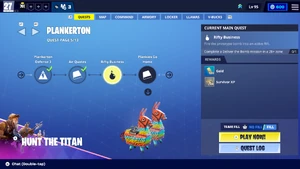 Main Article: Quests (Save the World)
 The Quests tab allows players to access their Quests and track their story progress. Limited-time quests, such as Frozen Fjords, are also accessible from this menu.
Story quests are displayed in a horizontal, page-based layout, with 4 quests at a time showing onscreen. Other quests, such as Weekly Quests, can be accessed by pressing the "Quest Log" button, which will open a vertically-scrolling list with collapsible sections.
Map[]


The Map tab allows players to select their zone on a globe-like interface, and then launch into a Mission from the Map. Players can view the rewards and power level of a mission, as well as selecting whether or not they want their team to fill. Players can also access their and others' Storm Shields for each zone from here. Limited-time zones, such as Frozen Fjords, will also appear on the globe. The map screen will also display the player's pinned quests in the top right corner.
Upon selecting a mission, the Map tab will be replaced with a screen which resembles the Play tab from Fortnite's other modes. In here, players can launch the mission or wait for up to 2 minutes for other teammates to join their party. The mission can also be abandoned. The player can also use their Emotes on this screen.
Command[]

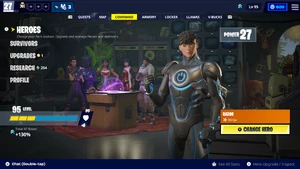
The Command tab allows players to manage their Heroes and Survivors, as well as their Upgrades.
- The "Heroes" section allows players to manage their Heroes and Hero Loadout, Players can also view and manage their Defenders. Players can also access Expeditions from this menu.
- The "Survivors" section allows players to manage their survivors and survivor squads.
- The "Upgrades" section allows players to spend their Upgrade points on upgrades to the player's Gadgets and tools (such as their pickaxe).
- The "Research" section allows players to spend their research points on upgrades to the player, such as their health or damage.
- The "Profile" section allows players to view and use their XP Boosts and see what rewards will be granted for upcoming levels.
Armory[]


The Armory tab allows players to manage their Schematics and Backpack, as well as access the Collection Book.
- The "Schematics" section allows players to manage and upgrade their schematics.
- The "Backpack" section allows players to manage their backpack.
- The "Storage" section allows players to transfer items from their backpack to their Storm Shield storage.
- The "Collection Book" section allows players to view the Collection Book, allowing players to view and recruit heroes, and to research Schematics.
- The "Resources" section allows players to view the resources, such as Sunbeam Crystal, that they currently have.
Locker[]

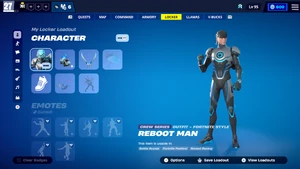 Main Article: Locker
 The Locker allows players to manage and equip their owned Cosmetic Items. Players can also manage and equip their saved Loadouts and Presets.
Every Locker section and cosmetic is accessible and can be equipped using this tab, but not all cosmetics can be used Save the World. For example, Gliders cannot be used in Save the World, but they can still be equipped in the Locker tab. If a cosmetic is not usable in Save the World, it will be greyed out.
Llamas[]
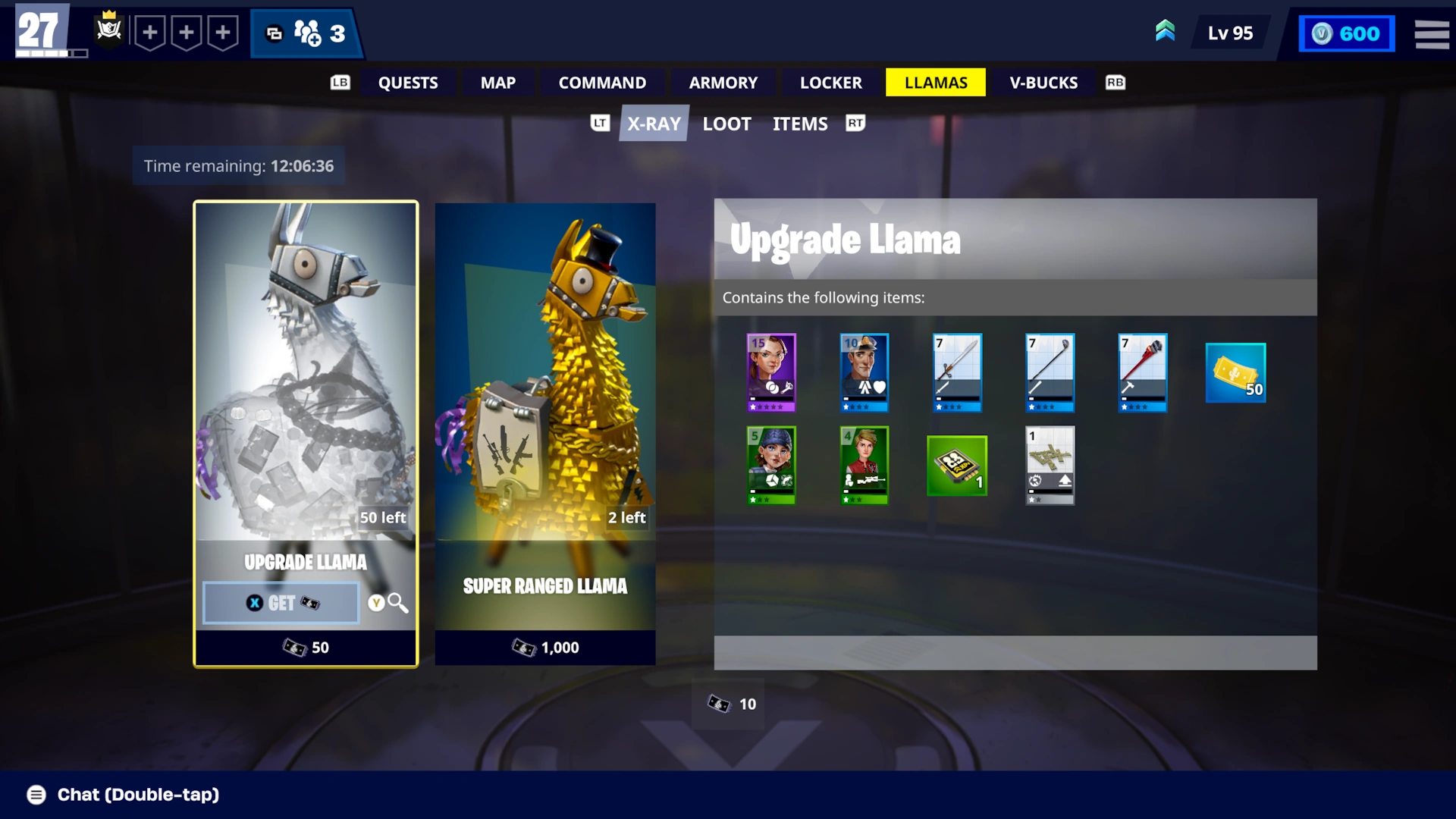
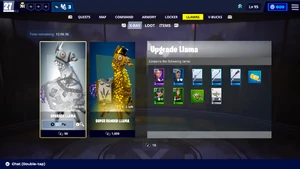 Main Article: Llamas
 The Llamas tab allows players to access the Llama Shop, where they can purchase Llamas using tickets, and certain items using Gold. The shop is divided into 3 sections:
- The "X-Ray" section allows players to purchase Llamas using X-Ray Tickets. Players can see exactly what is inside these Llamas before opening them.
- The "Loot" section allows players to purchase from the current event (such as the Rad Llama during Blasted Badlands) using seasonal tickets.
- The "Items" section allows players to purchase items, such as Schematics directly, using Gold.
While the player is in this tab, their Lobby Music will be overridden by the store's music.
V-Bucks[]
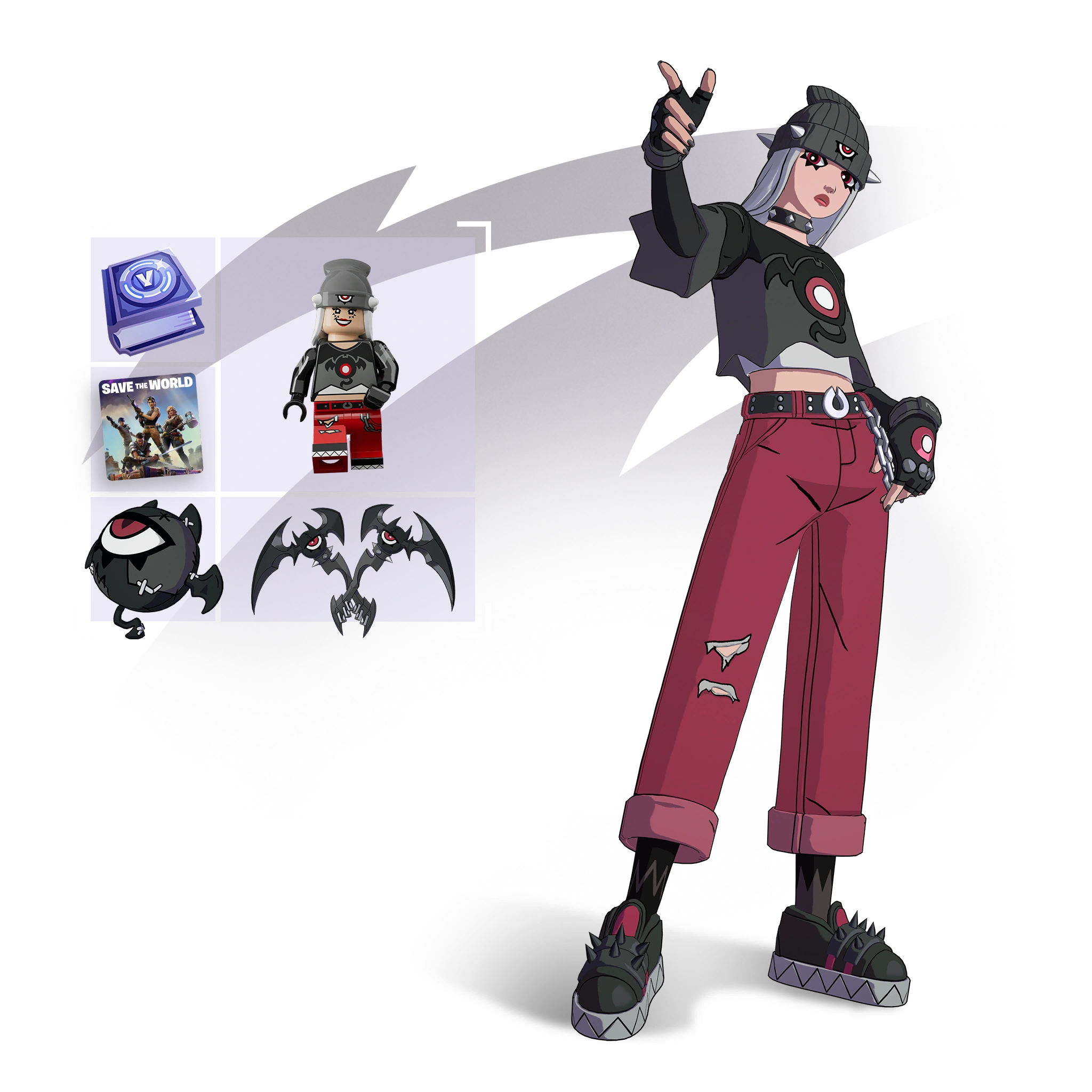
Main Article: V-Bucks The V-Bucks tab allows players to purchase either V-Bucks or the current Save the World Starter Pack. All purchases in the V-Bucks tab use real-world money instead of V-Bucks. V-Bucks cannot be spent in Save the World, due to the lack of an Item Shop tab. Below is a list of available offerings in the V-Bucks tab:


_-_Mechanic_-_Fortnite.png)
_-_User_Interface_-_Fortnite.png)


_-_User_Interface_-_Save_the_World.png)


